
Welcome!
Please select a tutorial to view:
STUDENTS:
How to view/join an online course.TEACHERS:
How to start a class.
More tutorials are coming soon.
How to operate the media pc and record
First, login to Populi with your student login.
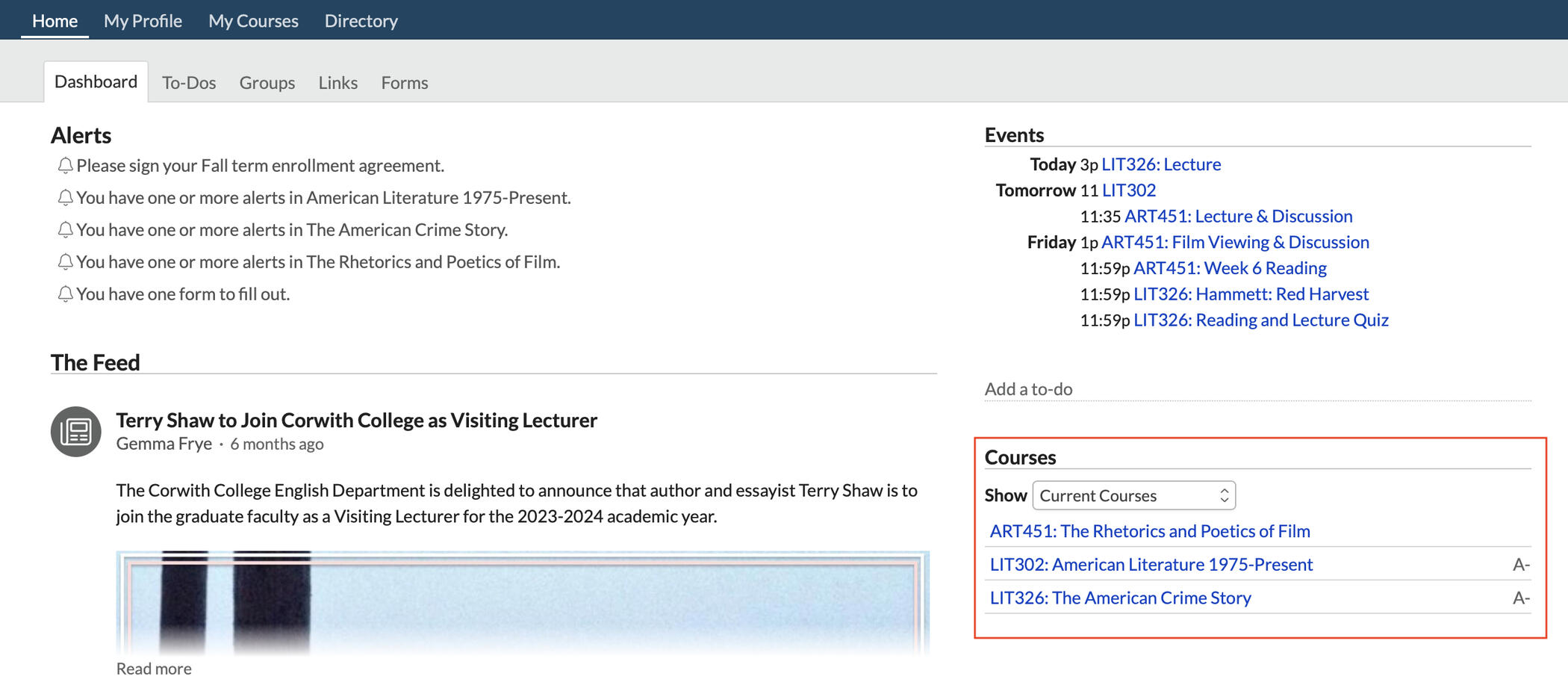
From the list of courses on the right-hand side, please select the course that is about to begin.
Then select the Conferences tab on the left (1), and click on Join Conference (2).
Zoom will try and open (Allow It)
When Zoom launches, ensure that Video and Audio are turned On.
Make sure that the teacher is wearing their microphone, and that the receiver is turned on and connected.
Open OBS. You should see the audio meter moving left and right as the teacher speaks as visualized below (even if the mic is muted in OBS).
When it is time to begin class, simply press the button on the Stream Deck that corresponds to the current class.
You can switch between the Camera, The PowerPoint, and a side-by-side (or Picture-in-Picture) at any time using the buttons on the Stream Deck.
If the class takes a break, press the BREAK button on the Stream Deck to pause the recording and mute the teacher's mic. To resume following the break, just select a camera view from the Stream Deck.
When the class is complete, click on the END CLASS button on the Stream Deck.
Finally, close out of the internet browser that has Zoom and Populi open (you will be logged out of Populi automatically).
How to start your class
Follow these quick and simple steps to start your class.
First, login to Populi.
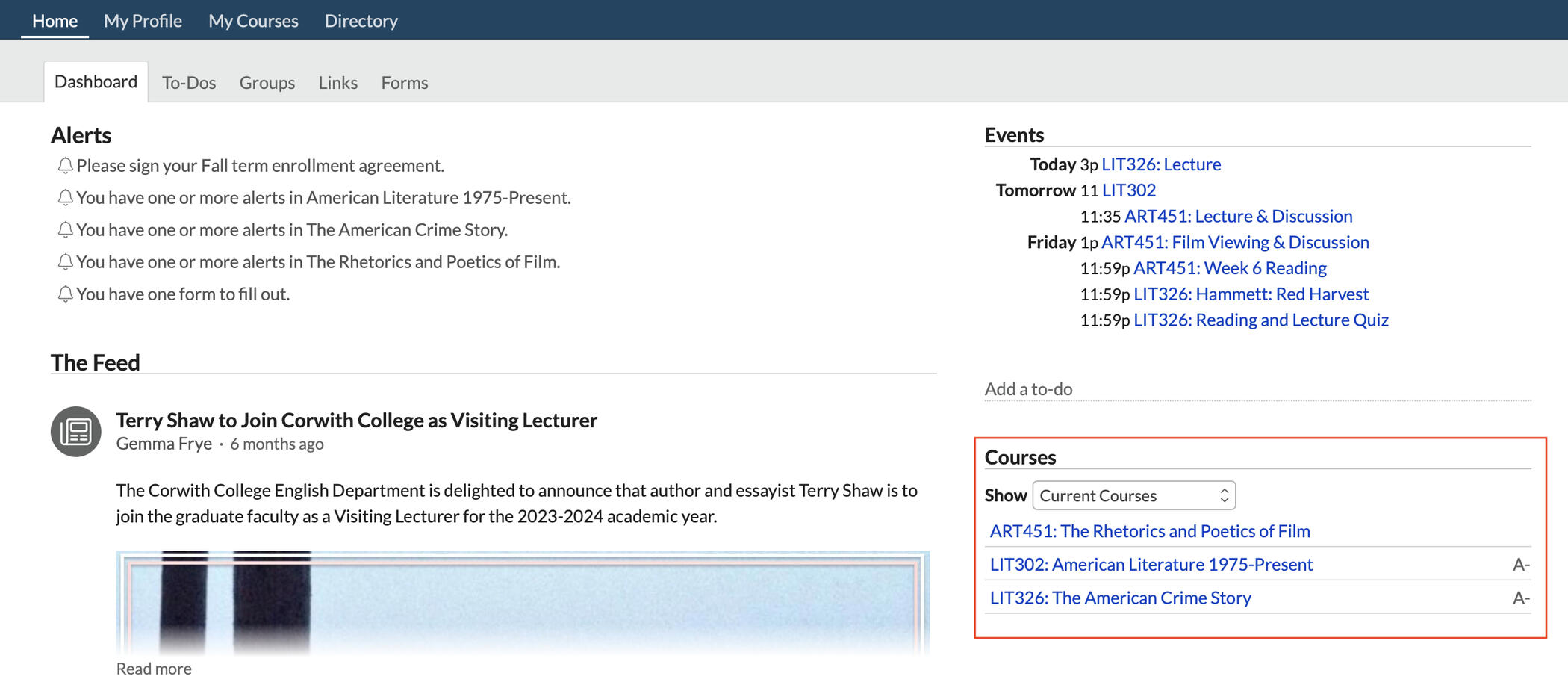
Select your course from the list on the right-hand side.
Click on the Conferences tab from the list on the left-hand side.
From the list of Scheduled Conferences, click Start Conference next to the conference with today's date, and then it will appear under Current Conferences at the top. Click on Join Conference.
Zoom will try and open up (Allow It)
When Zoom launches, make sure that your Video and Audio are turned OFF.
To hear the students online, use the volume knob on the speaker located on your desk (online students will not hear you until class begins following the introduction video).
Remember to take attendance!
This needs to be done for all students, in-person and online.
Now you can use the PowerPoint computer (or your own laptop) connected to the TV with the HDMI cable to show your presentation (both in-person and online). If you need help with this, check out the Using Your PowerPoint tutorial.
When class is completed, allow the Outro video to play over Zoom, and then close out of Zoom ending the conference for everyone.
Don't forget to return your microphone to the charger!
How to join an online course
Follow these quick and simple steps to join an online course through Populi.
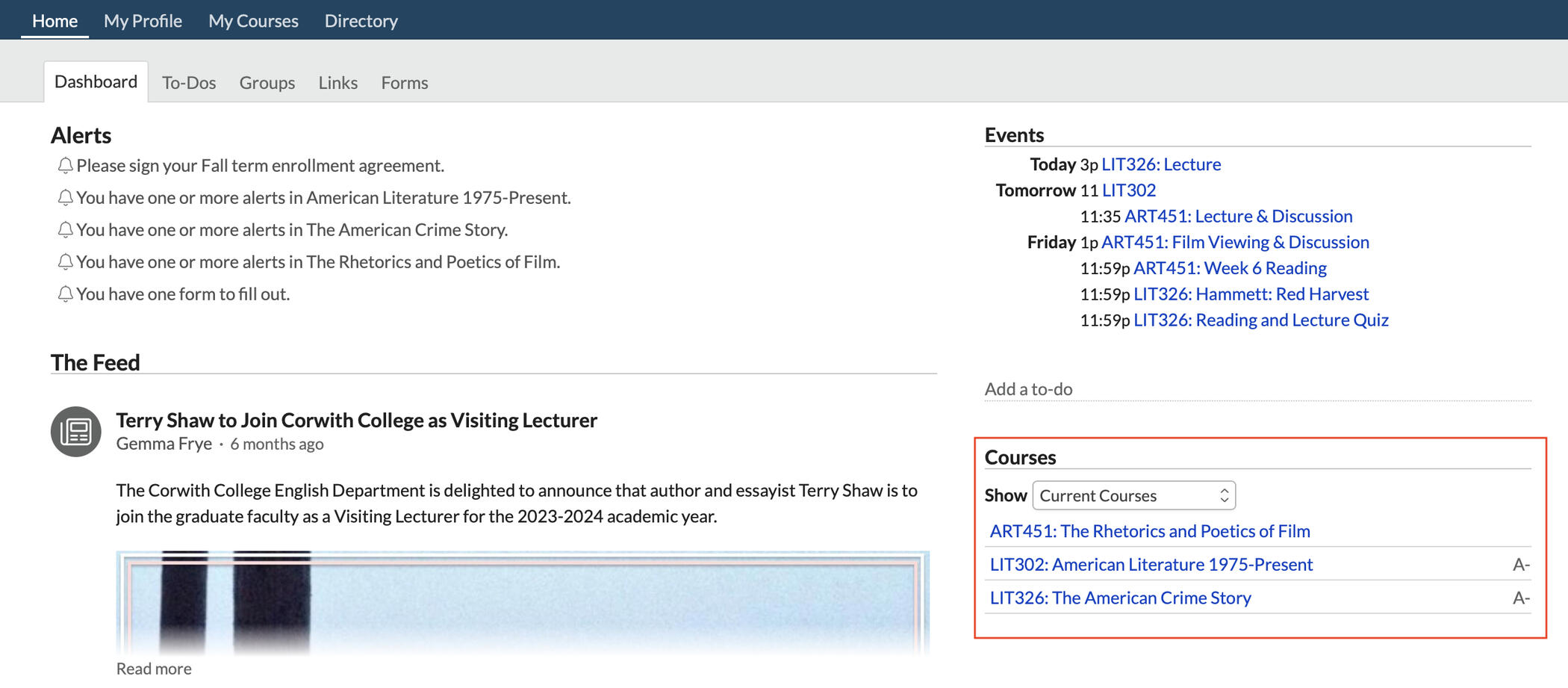
When you login to Populi, you will see your courses listed on the right-hand side of the page. Click on a course to view that course's information, and to join the online conference.
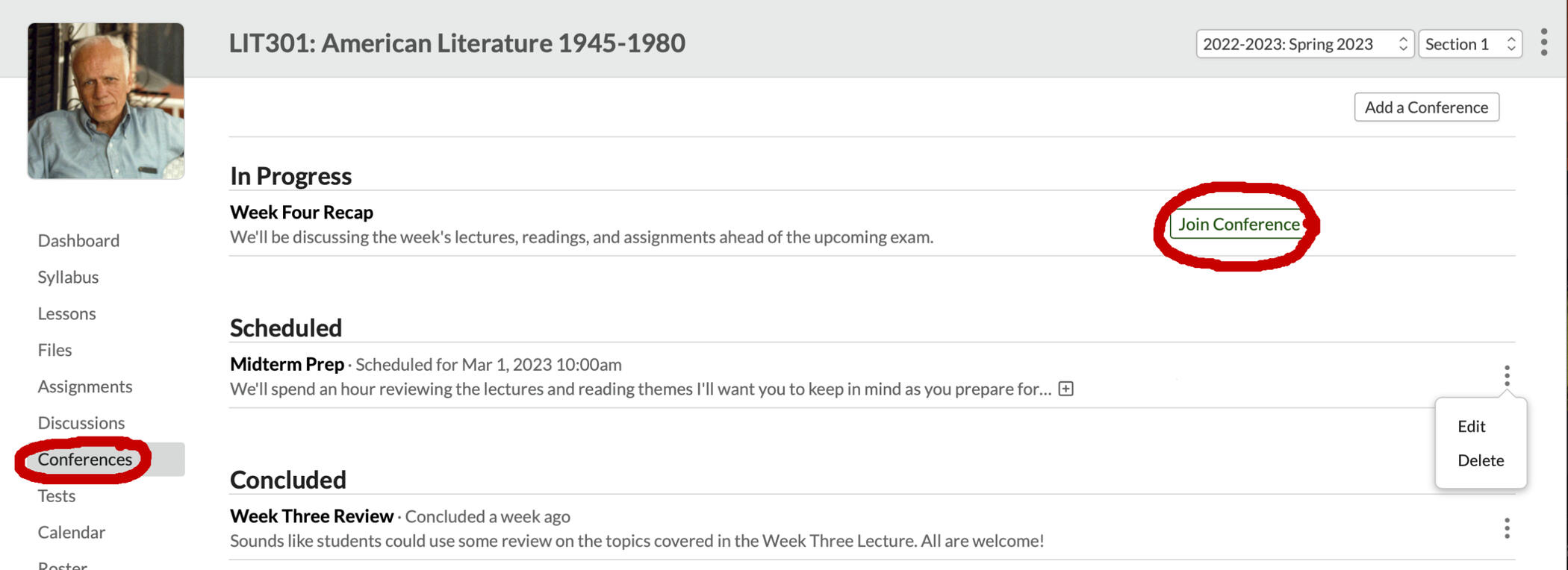
When you have selected a course, click on Conferences, located on the left-hand side.You will then see In Progress, Scheduled and Concluded conferences in the center of the page.If there is a conference available to join, it will appear under In Progress with a green Join Conference option beside it.When you click on Join Conference, Zoom should open and join the meeting. If you do not have Zoom installed, you will be prompted to download and install it.
blank
Empty section.